
[ 3ds max tutorial ] – If the Material Editor appears limited and you do not know how to create other materials, read this post … it takes just 5 minutes, but everything be more clear! (-:
If you open the material editor (shortcut = M) you’ll see just 6 slots to create materials. Of course you can create more than 6!
At first, click the right button on the slot, then select a different option like “5×3” and “6X4“: try to select them. The available slots will be 15 or 24, depending on your choice.
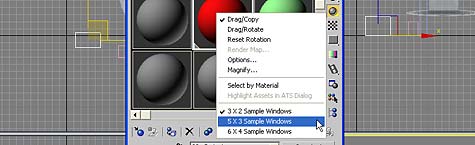
But.. Is 24 the maximum number of materials you can have? Certainly not.
I admit that the system is not very intuitive! In fact the material editor is a limited space to create, refine and assign materials, and there’s no limit to do that! Let’s take a simple test.
Building a box / create a “stupid” material / Assign material.
Now, click the “X” (reset map to default setting): A window will appear with 2 choices!

1) if we choose the 1st option:
- you reset all the material parameters
- the object in the scene continues to be connected to this material
(Just note that the box in the viewport suddenly turn gray)
2) If we choose the 2nd option:
- object and material will be “disconnected”
- the material in the slot will resetted and associated with nothing
- the object in the scene will preserve the material that was before the cancellation
NOW THE QUESTION IS
How could I edit a material removed from the material editor, but it is still associated with an object in the scene?
Just go to the material editor and bring it back in the Material Editor as follows:
Get Material -> Scene -> Double-click the material you want back

CONCLUSION
The material editor is a sort of  “palette” where temporary support materials to create and associate them easily.
If you want to to create a new material and the slots are all occupated, click “X” and choose the option 2… don’t be afraid!! You don’t loose anything! Your material will be safe among the material scene (-:
 / Also Learn Corona Renderer

Thanks for that…. it’s an important thing to know… it did feel like Max limits you somehow with the material creation… apparently – not.
Great tip!
to disconnect the material from the object, but to save the material? Because the second option makes, that “the object in the scene will preserve the material that was before the cancellation”, and the first makes “the object in the scene continues to be connected to this material” I’m starting with 3dmax, this blog solves really great problems 🙂
HawAnkA, thanks for for comment!
That encourage me keeping on my Cg-Blog!
Youd think max would have a easier way to do this though. Why would they limit it to just 24 slots before you have to go threw all that trouble of deleting and reapplying all the time. Ive been seeing people complain about this since max 3 and it doesnt seem like anything is gonna change anytime soon. All in all great article though It should really help out a lot of people.
great trick thanks for sharing
hola ciro, gracias por este tip acerca de los materiales, pero como usar el multi/sub-
object ?
gracias de nuevo
Hi Gilberto,
I’ll keep in mind… thanks for your suggestion 🙂
Thank you very much
This was amazing